
Reduce Your Alumni Account Storage
Google has eliminated unlimited storage in its Workspace for Education accounts. To continue offering every Stanford alum an alumni email address, our Stanford alumni Google accounts will have a new storage limit of 5 GB, effective January 8, 2027.
If you’re currently over that limit, this page walks you through how to see what’s using your space, save anything you want to keep, and free up room in your Google account.
Most alumni who need to reduce their storage fall into one of two groups: those with large files in Drive, and those with large email attachments in Gmail. The first step below tells you which group you’re in.
Before You Begin
Make sure you’re signed in to your alumni account. If you’re signed in to a work or personal Google account in the same browser, you may end up viewing the wrong account’s files. Check the profile icon in the upper right before you start.
Each Google service has its own trash. Emptying the trash in Gmail does not empty it in Drive, and deleted items keep counting against your quota until each trash is emptied.
Deletion is permanent. Once you empty any app’s trash, those files and messages cannot be recovered. Save anything you want to keep before you delete.
Additional storage cannot be purchased. The Alumni Association is neither marketing nor selling additional storage for the accounts.
Step 1: See What’s Using Your Space
Click the grid icon in the upper right, then Drive, then Storage to see your quota and how much you’ve used.
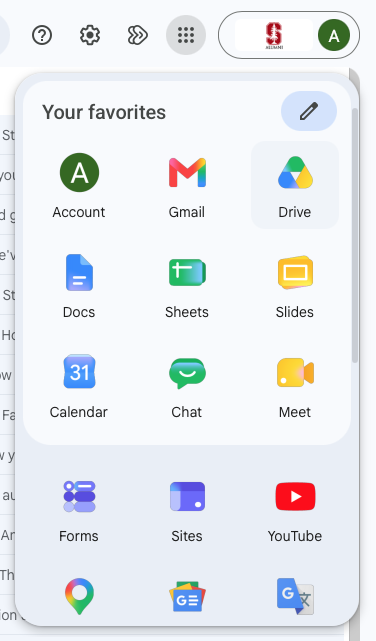
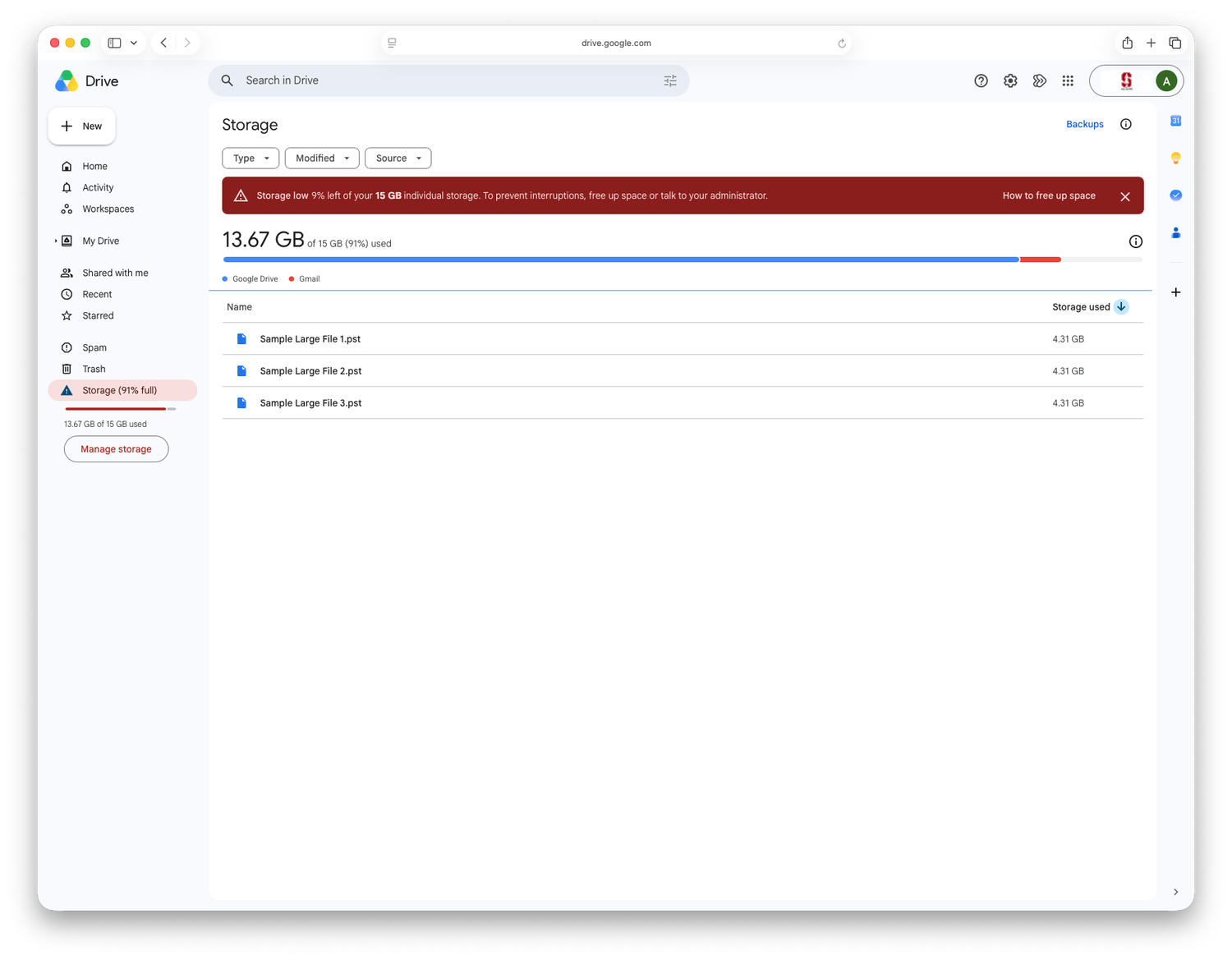
This view breaks your usage down by service, so you can tell whether your space is going to Drive files or Gmail. Start with whichever is largest.
Step 2: Save Your Data With Google Takeout
Google Takeout exports your data from any Google service in one request, so it’s the best starting point whether your storage is in Drive or Gmail. Export first, confirm your download works, then delete.
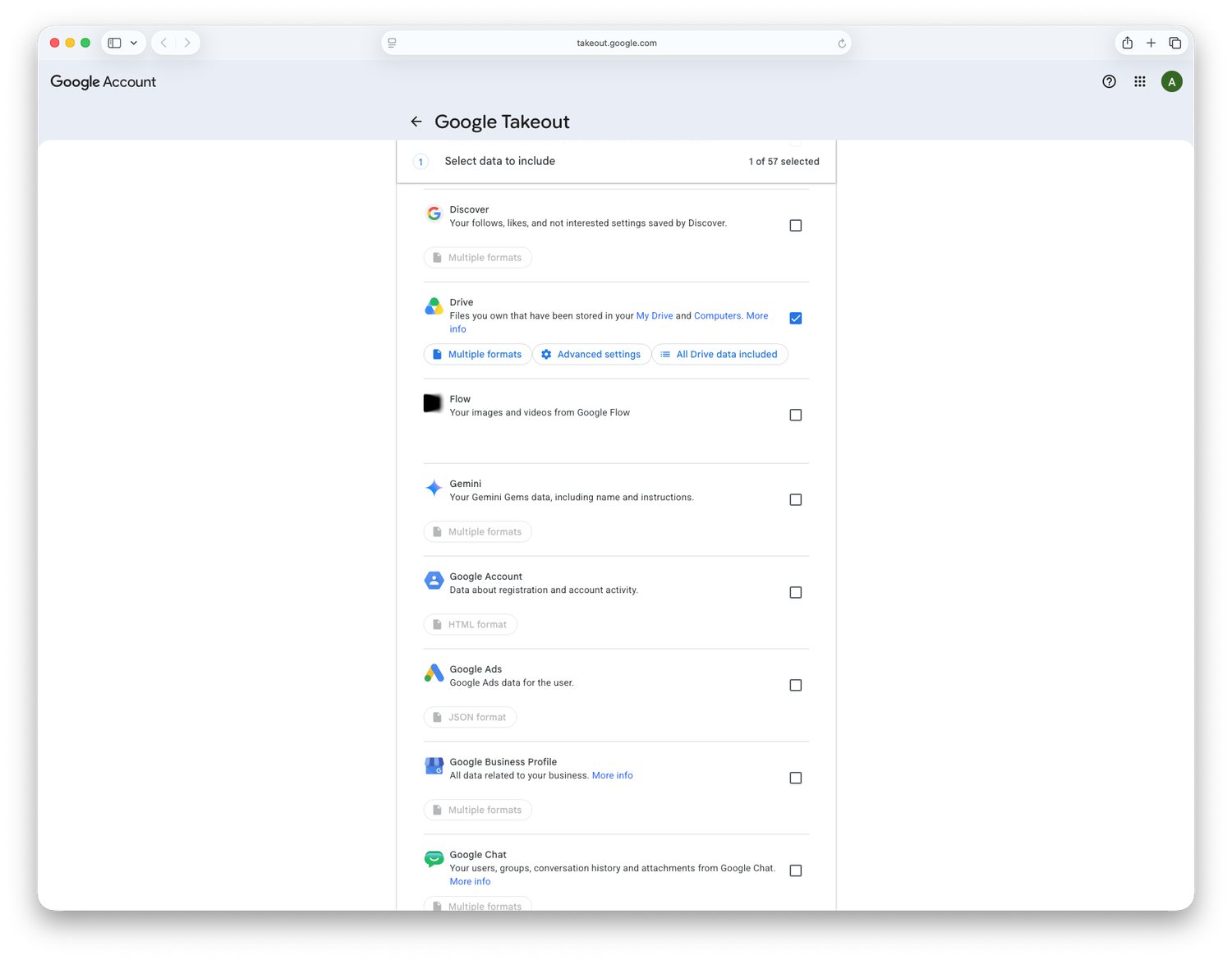
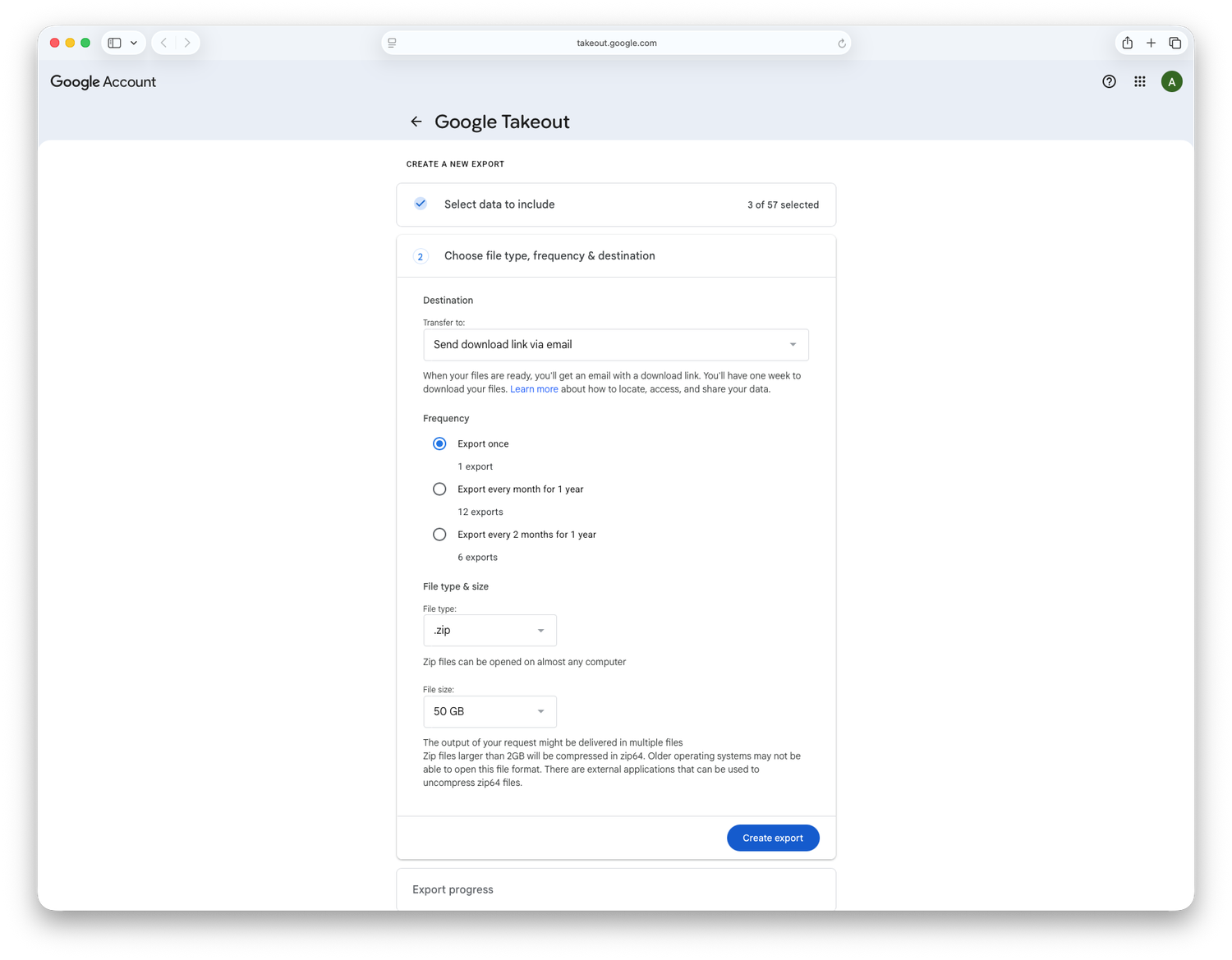
Visit takeout.google.com, signed in to your alumni account.
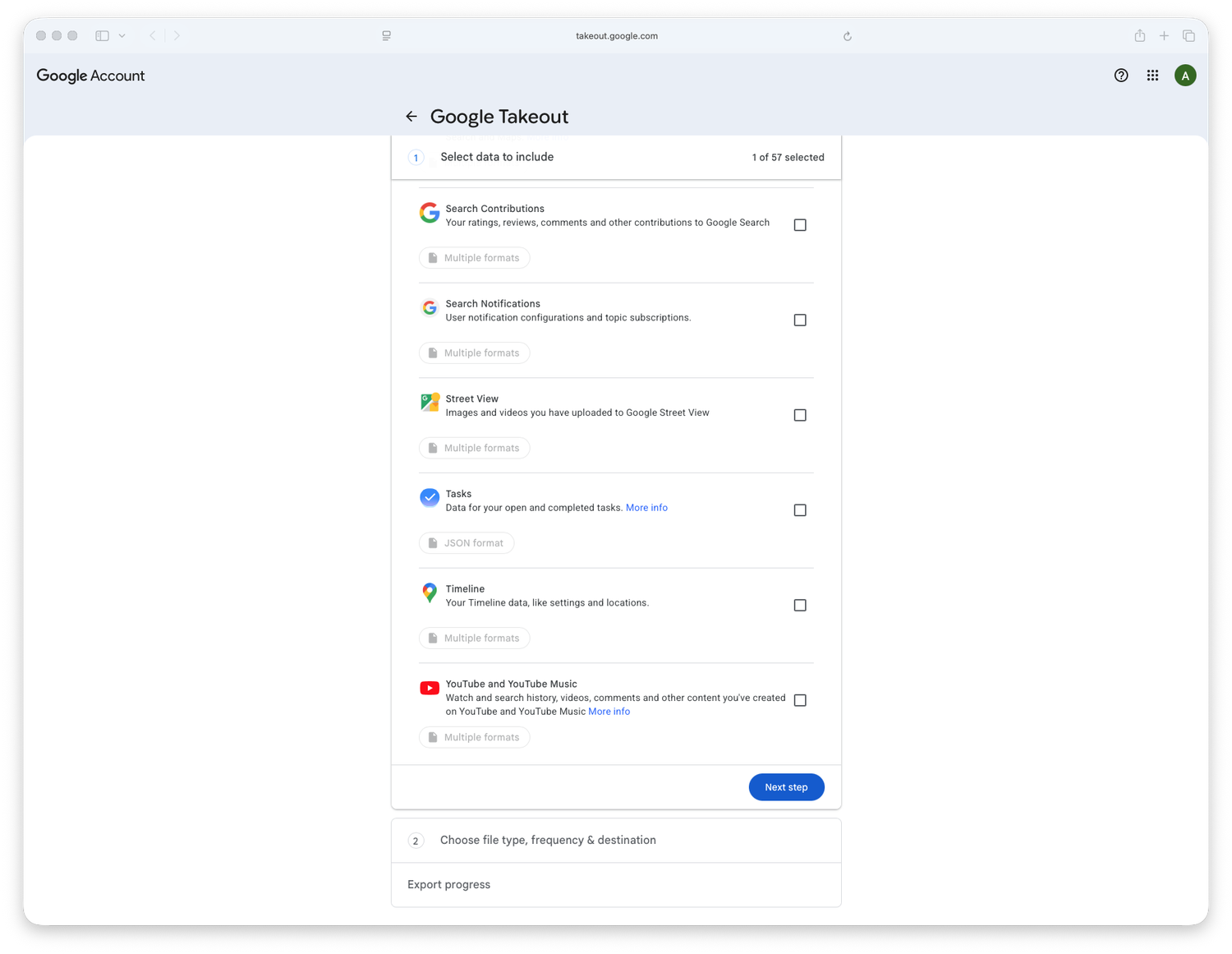
Select the checkbox next to any service whose data you want to keep, such as Mail or Drive.
Then click Next step.
Keep the Send download link via email setting.
Choose your export frequency, file format, and file size (options span 1 GB to 50 GB). If your export is larger than the size you choose, Google splits it into multiple files—be sure to download all of them.
Click Create export. Google confirms your request by email, then sends a second email with a download link once your export is ready. Large exports can take hours or several days, so start this well before the deadline.
Verify Your Download Before You Delete Anything
When your download link arrives, download all of the files and open them—the link expires one week after it arrives. Confirm your files and messages are actually there and that the export is complete. Only then move on to deleting.
Deleted data cannot be recovered once you empty your trash.
Prefer to move your data instead of downloading it?
If you’d rather transfer your alumni Drive and Gmail content directly into another account, that works too. Our support team offers side-by-side comparisons of popular options so you can decide the right approach for you.
If most of your storage is in Drive
Large files are usually the fastest way to free significant space.
Google Drive
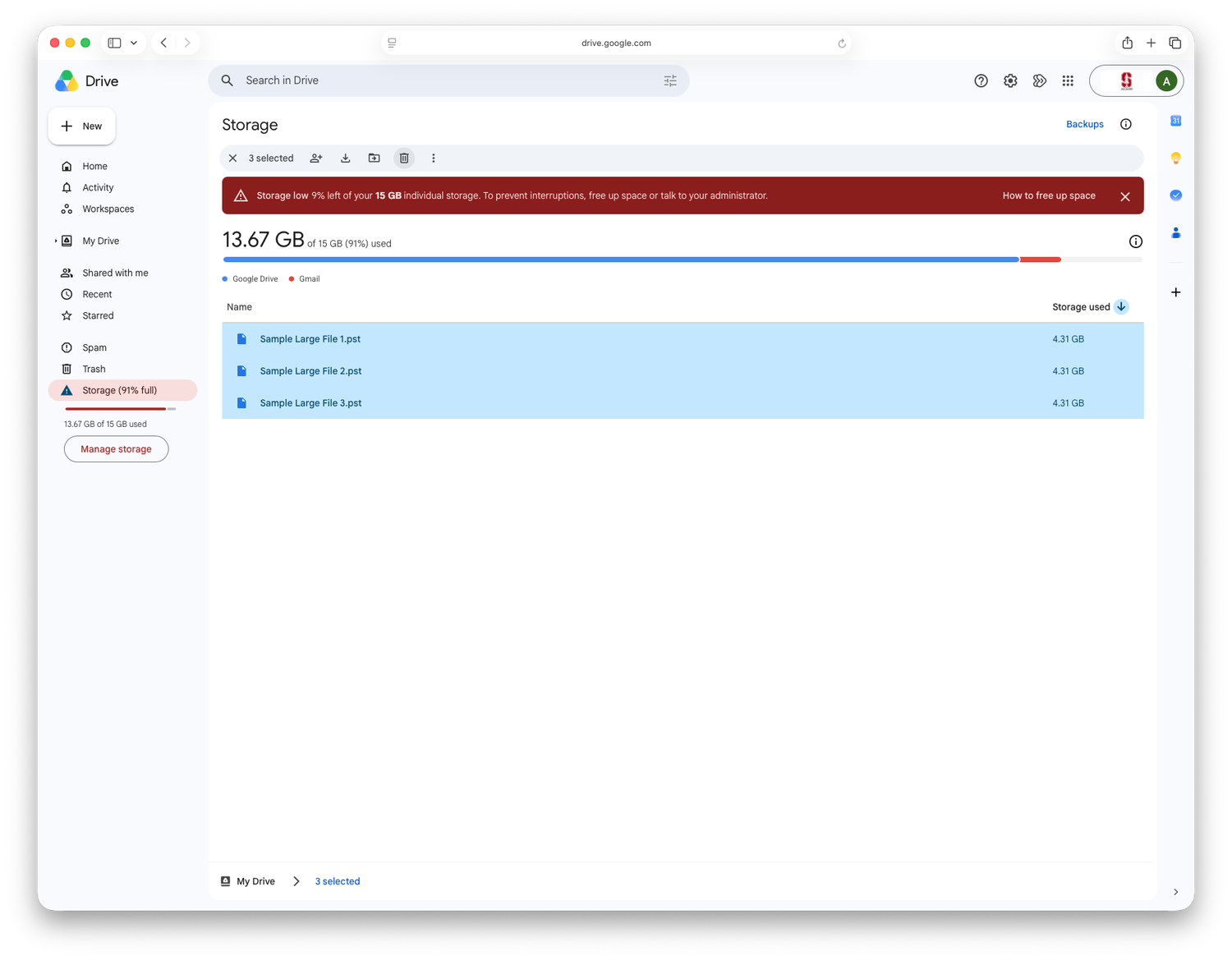
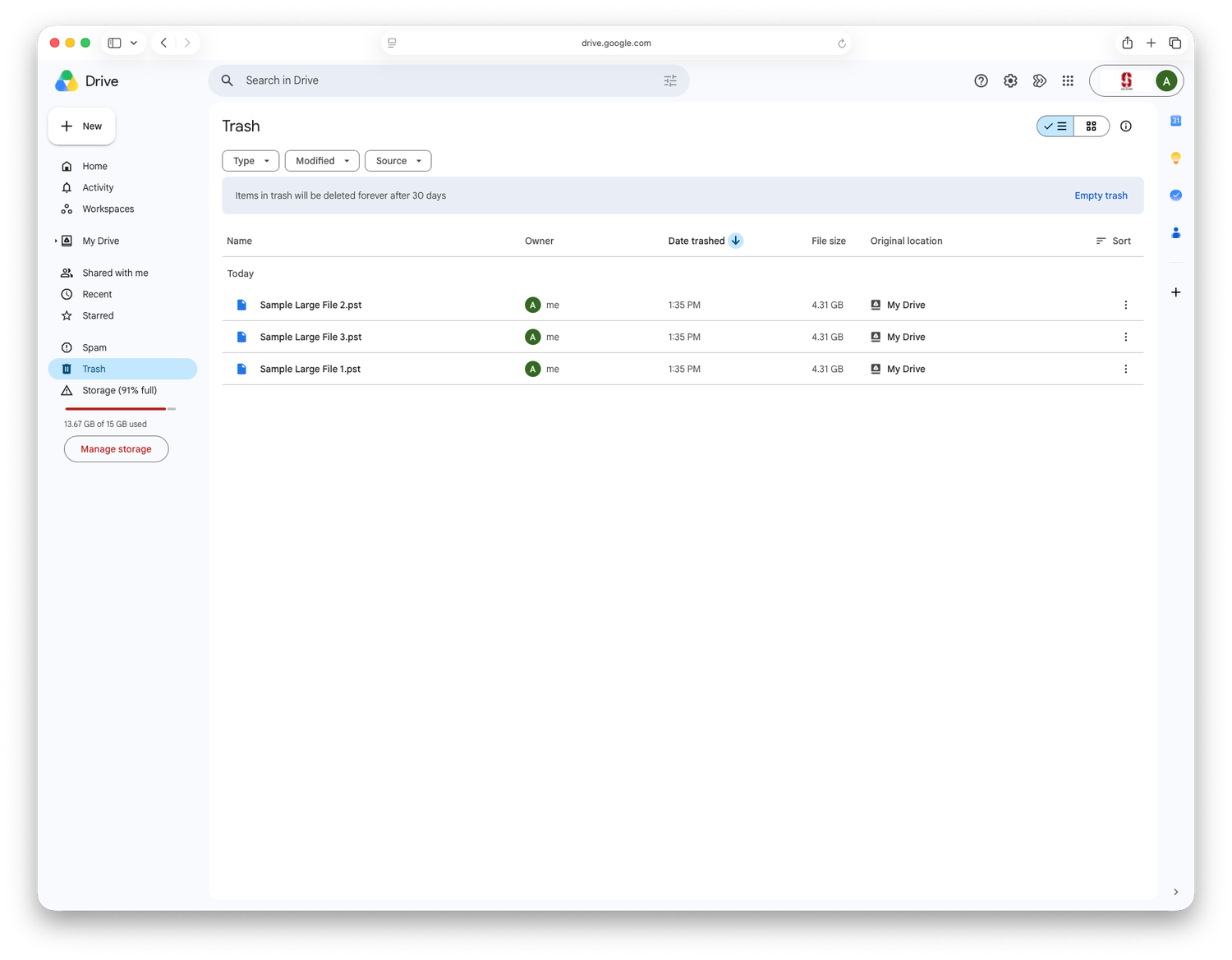
The Storage view you opened in step 1 lists your files from largest to smallest. Work down from the top, and delete anything you no longer need or have already saved elsewhere by selecting files and clicking the trash icon in the toolbar at the top of the screen.
Then click Trash in the left menu and Empty trash. Your storage won’t drop until you do.
If Most of Your Storage Is in Gmail
Large attachments are almost always the cause.
Type has:attachment larger:5M in the search bar to find every message with an attachment over 5 MB. Then select any you no longer need and click the trash icon under the search bar.
A few other searches worth trying:
larger:10Mfor your biggest messagesolder_than:5yfor old mail you’re unlikely to needhas:attachment older_than:2yfor aging attachments
Two things to know about Gmail specifically:
Archiving won’t free up space. Archived messages still count against your quota. Only deleting does.
Empty your trash when you’re done. Click More in the left menu, then Trash, then the blue Empty trash now link. Deleted mail counts against your quota until you do. It’s also worth emptying Spam, which counts too.
Stop New Mail From Adding to Your Quota
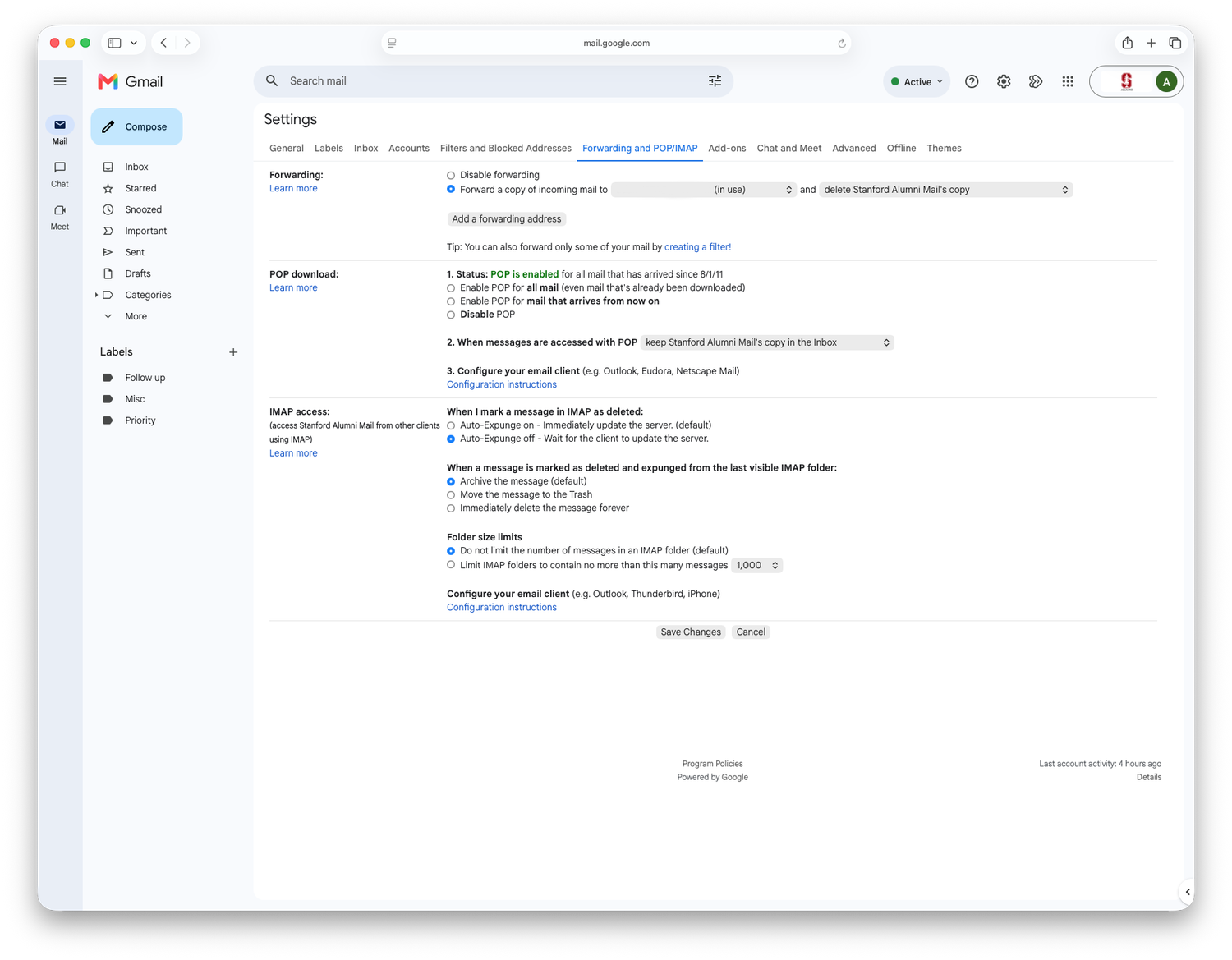
If you forward your alumni email to another address, you can forward without keeping a copy on the server.
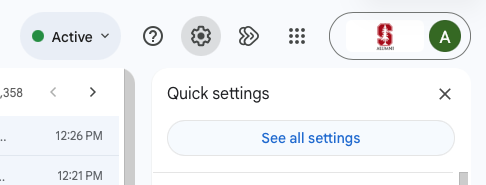
Click the gear icon in the upper right, then See all settings, then Forwarding and POP/IMAP. Ensure the option next to your forwarding address is set to delete Stanford Alumni Mail’s copy.
Where To Keep Your Data Going Forward
Once you’ve exported your data, you’ll want somewhere to keep it. A few options, from simplest to most involved:
Your own computer. Free, immediate, and fine for most people. Make sure you have a backup, whether that’s Time Machine, Windows File History, or a second copy somewhere else.
An external hard drive or flash drive. Inexpensive, and keeps your data off your main machine.
A personal cloud account. A personal Google account, Dropbox, iCloud, OneDrive, or Box all work. Confirm the destination has enough free space before you start transferring.
Whichever you choose, check that your files opened correctly in their new home before you delete the originals.
Questions?
Contact Alumni Online Customer Service by submitting a help ticket. If you’d prefer to speak with someone, call us during standard business hours, Monday through Friday, 8 a.m. to 5 p.m. PT:
Toll-free (U.S.): (866) 543-0243
International: +1 (650) 724-0627